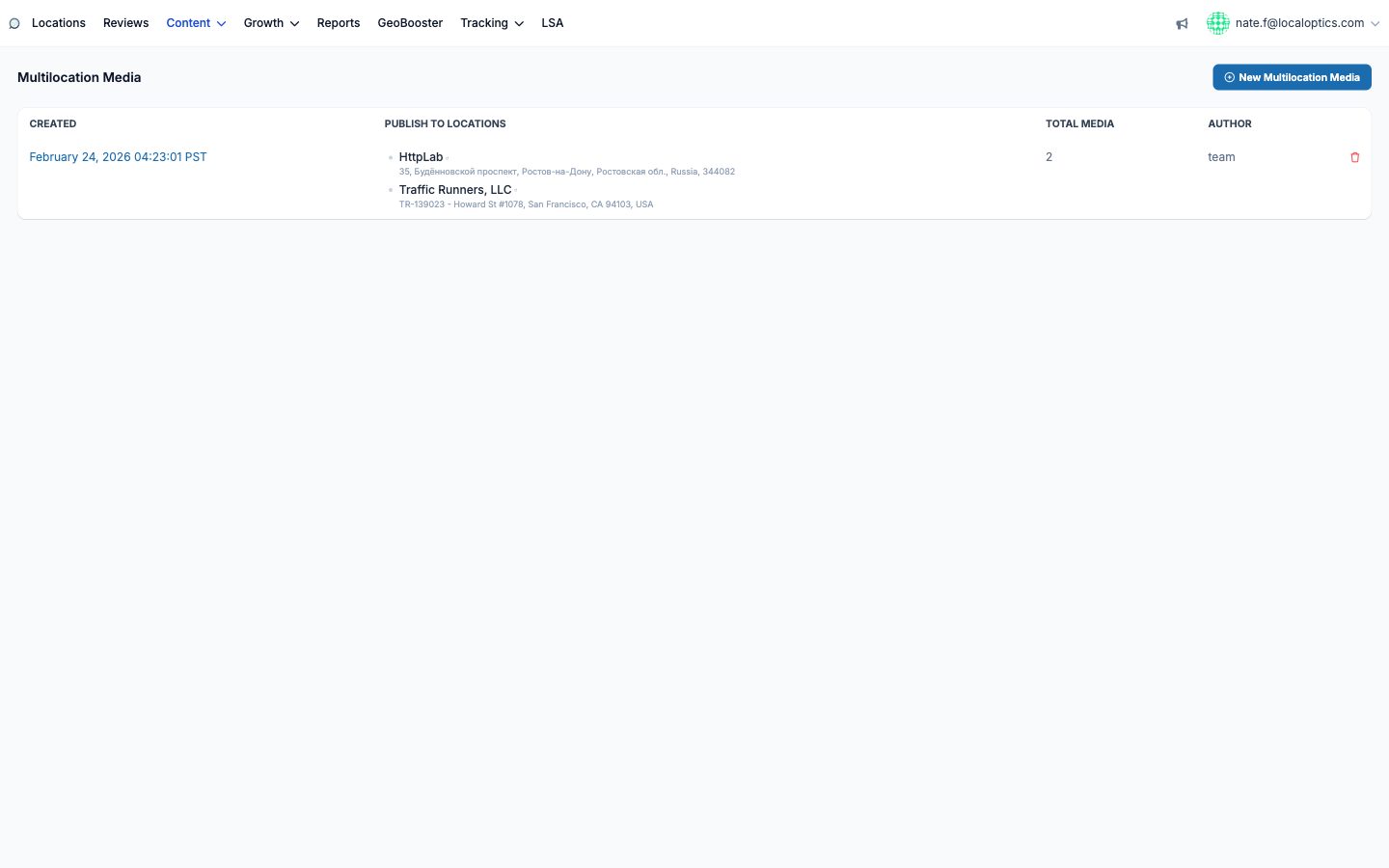
Multilocation Media (Bulk Posting > Multilocation Media) publishes a single photo or video to any number of your Google Business Profiles in one shot - the fastest way to push seasonal imagery, promotions or brand refreshes across a whole account.
Creating a batch
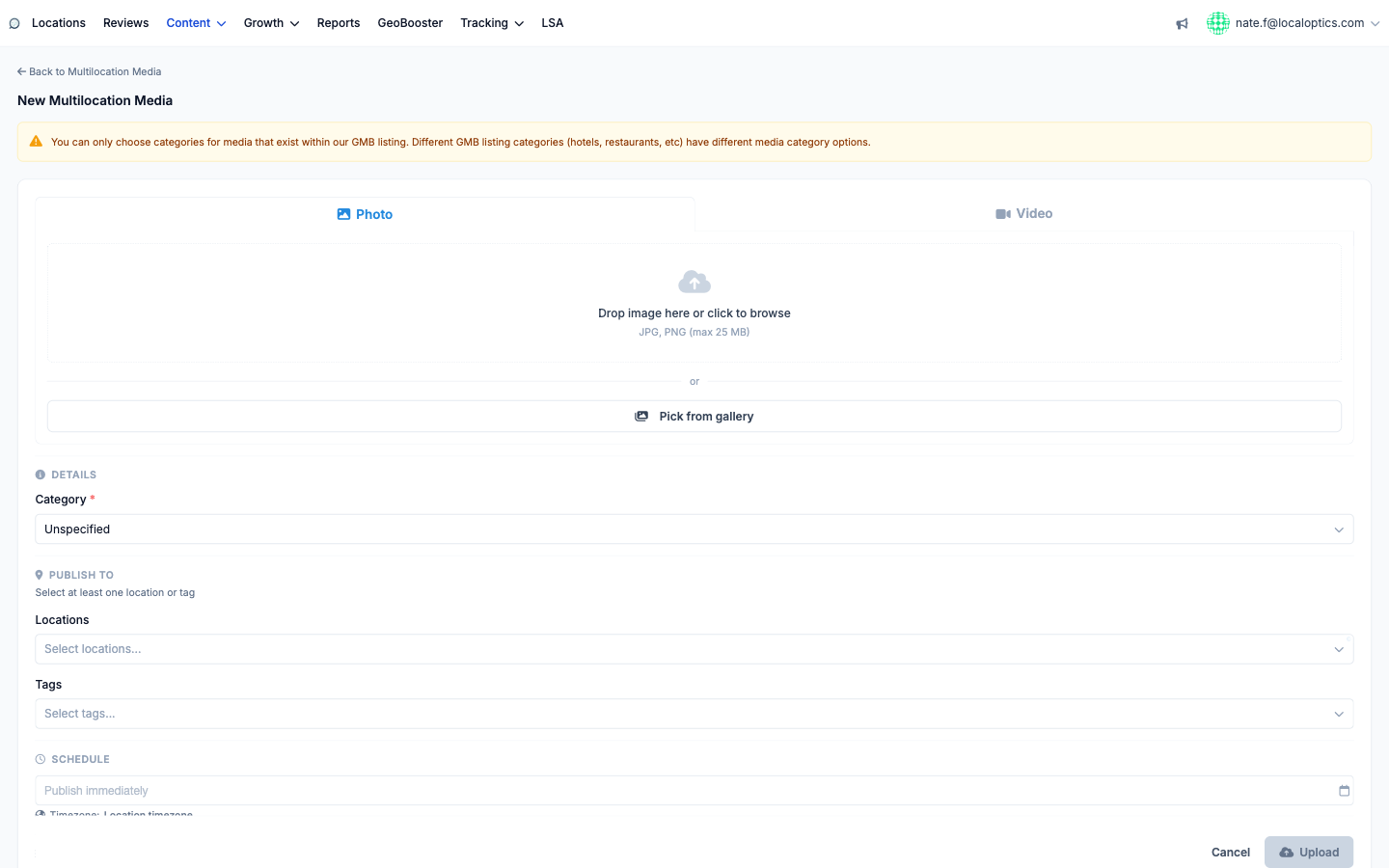
Click New Multilocation Media and work down the form:
Choose Photo or Video and add the file - drag and drop (JPG or PNG, up to 25 MB), browse, or Pick from gallery to reuse an image from your Media Gallery.
Set the media Category. Only categories supported by your listings' GBP business types are available - hotels, restaurants and service businesses each get different options, so a batch is limited to categories every target location supports.
Pick the targets under Publish to: select Locations individually, or select Tags to target every location carrying that tag (new locations added to a tag later are included in future batches automatically). You need at least one location or tag.
Schedule it - leave "Publish immediately" or pick a date and time. Times run in each location's own timezone, so a 9 AM schedule posts at 9 AM local everywhere.
Click Upload.
Tracking batches
The Multilocation Media index lists every batch with its creation date, the locations it published to, the total media count and the author - delete a row to remove the batch. Individual items then appear in each location's own Media page like any other upload.
The creation form:
And the batch list: