The GeoGrid Widget puts a "check your visibility on Google Maps" scanner on your own website. A visitor enters their business and a keyword, LocalOptics runs a geogrid, emails them the report as a PDF - and you capture the lead, complete with contact details and their actual ranking data. It's the strongest cold-open an agency can have: the prospect sees their own red map before you ever get on a call.
Setting it up
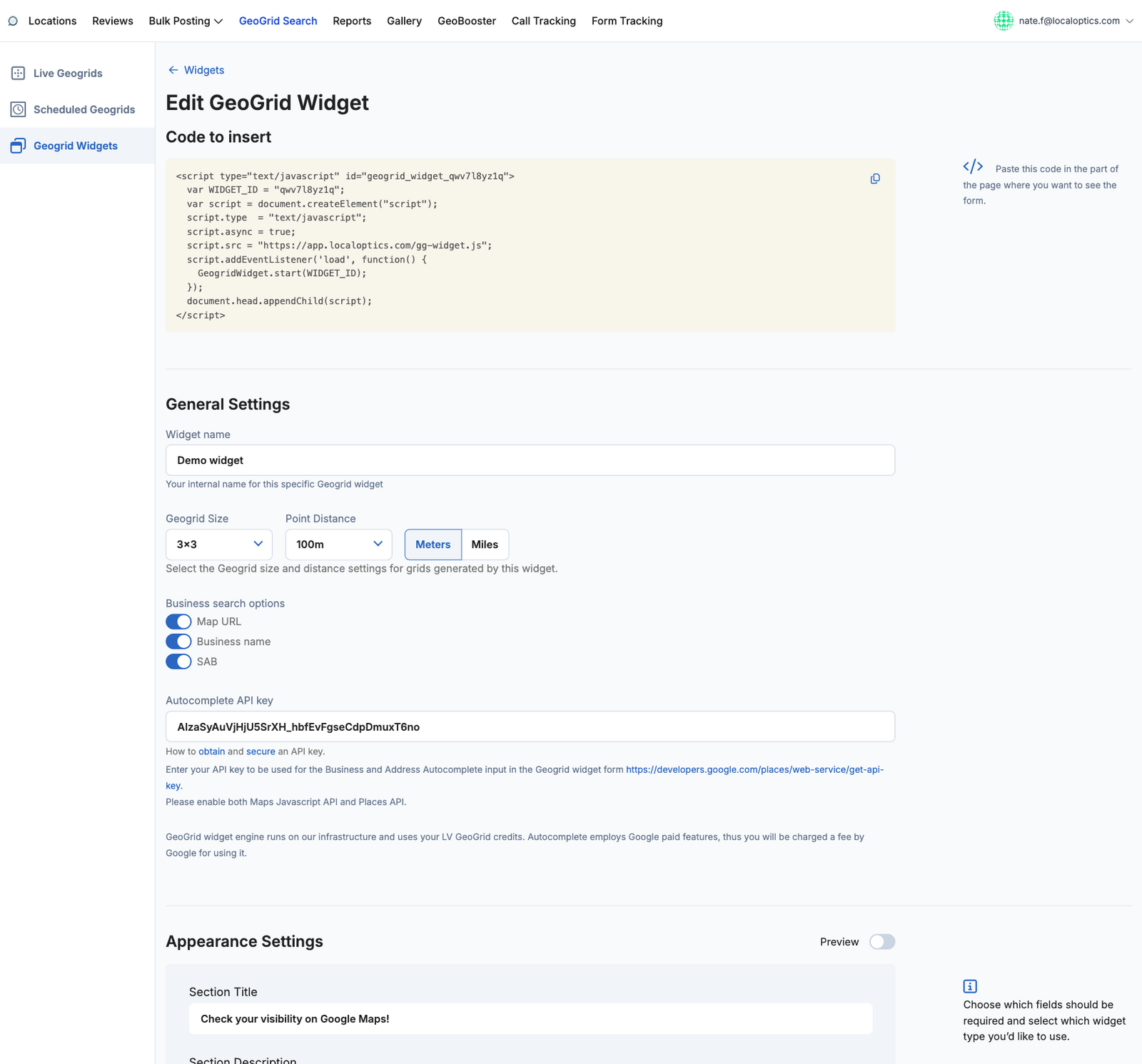
Create a widget under GeoGrid Search > GeoGrid Widgets and paste the generated Code to insert snippet into your site. Each widget carries its own configuration:
Grid preset - the grid size and point distance every visitor scan will use (visitors can't change it, so costs stay predictable).
Search options - let visitors find their business by name, by Google Maps URL, and/or as a Service Area Business (SAB).
Autocomplete API key - your own Google Places API key powers the business-name autocomplete on your domain.
Making it yours
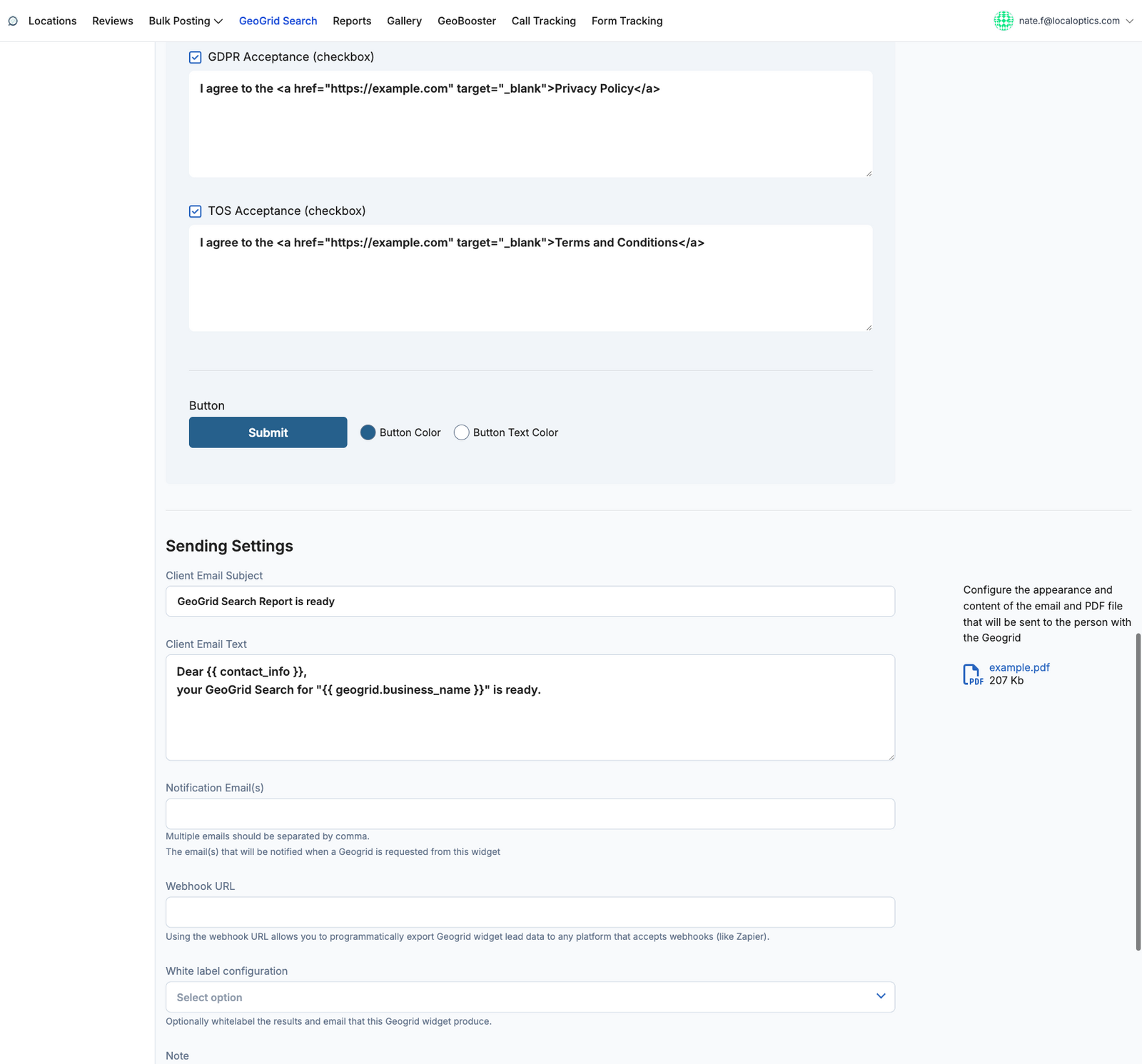
Appearance Settings control everything the visitor sees: the section title and description, every field label and placeholder, which fields are mandatory (name, phone), the button text and colors, and optional GDPR and Terms of Service consent checkboxes with your own linked text. A live preview shows the result as you edit.
Where the leads go
Sending Settings decide what happens after a visitor submits:
Client email - customize the subject and body of the report email the visitor receives (template variables like the contact name and business name are supported), with the geogrid attached as a PDF.
Notification emails - your team gets pinged on every request.
Webhook URL - POST each lead to any system that accepts webhooks (Zapier, your CRM).
Redirect URL - send the visitor to a thank-you or booking page after submitting.
White label - brand the results page and email with your agency's white-label configuration.
Every submission is stored under the widget's Requests tab - email, keyword, name, phone and the resulting geogrid - and can be exported to CSV.
The widget editor, with the embed snippet and general settings:
And the consent checkboxes, button styling and sending settings further down the same page: