White Label Settings (in your account settings) make LocalOptics disappear behind your agency's brand. Every public link - reports, audits, scheduled geogrid pages, geogrid widgets - and every email can carry your domain, your logo and your sender identity. You can create multiple configurations and use different brands for different clients.
What a configuration contains
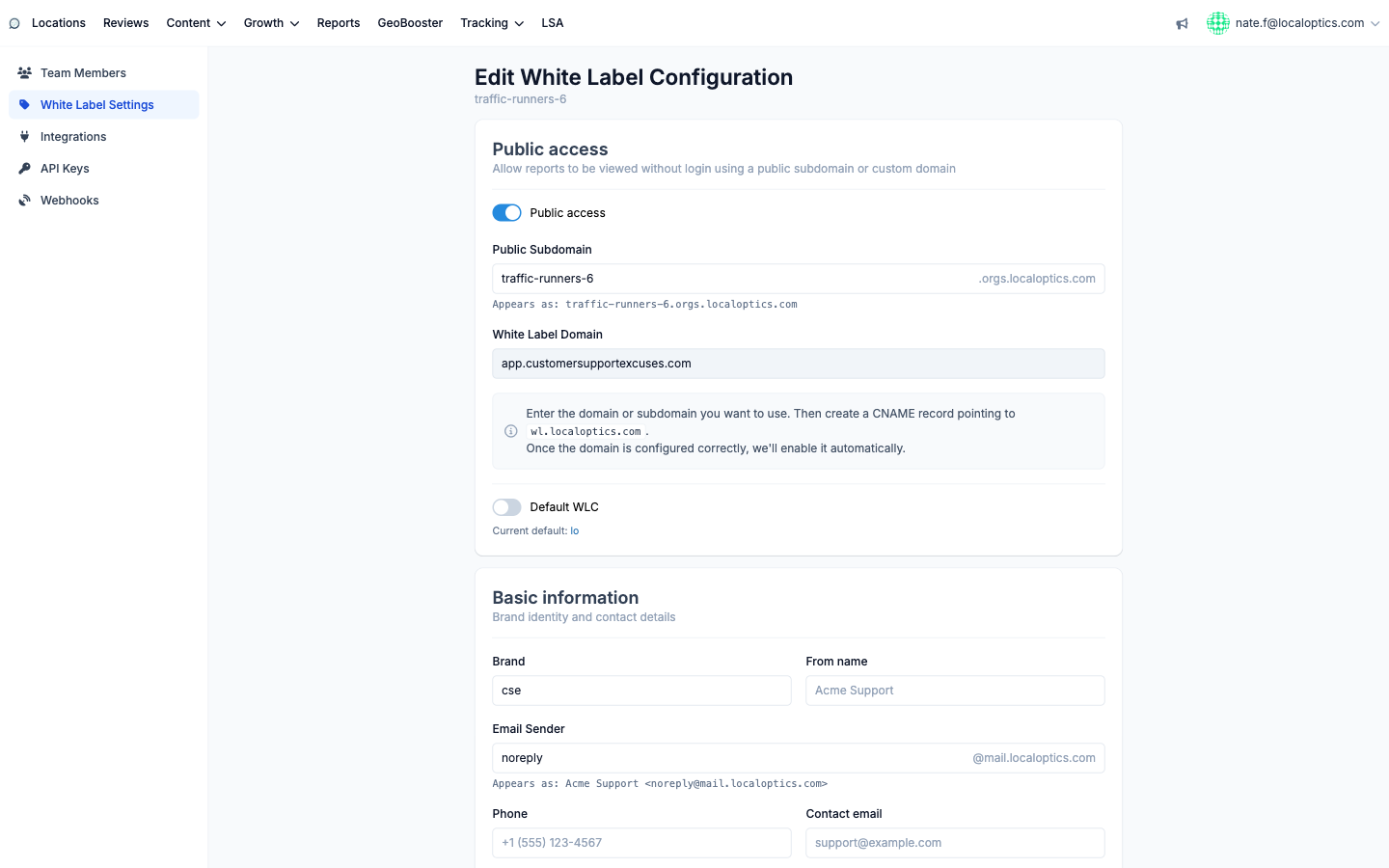
Public access - the master toggle that lets reports be viewed without a login, on a Public Subdomain (yourbrand.orgs. followed by the app domain) or your own White Label Domain.
Basic information - Brand name, email From name and Email Sender, phone, contact email and address; the email footer preview shows exactly how your details render in outgoing mail.
Assets - your Logo (PNG/JPG up to 5 MB, transparent background recommended) shown in emails and public pages, and a Favicon (32x32, up to 1 MB) for the browser tab.
Google OAuth - optionally your own Google app credentials (App ID and App Secret), so even the Google connect screen carries your brand.
Connecting your own domain
Enter the domain or subdomain (like reports.youragency.com) in White Label Domain, then create a CNAME record at your DNS provider pointing to wl. followed by the app domain. LocalOptics checks the record automatically and enables the domain when it verifies - the green check in the list means it's live.
Defaults and usage
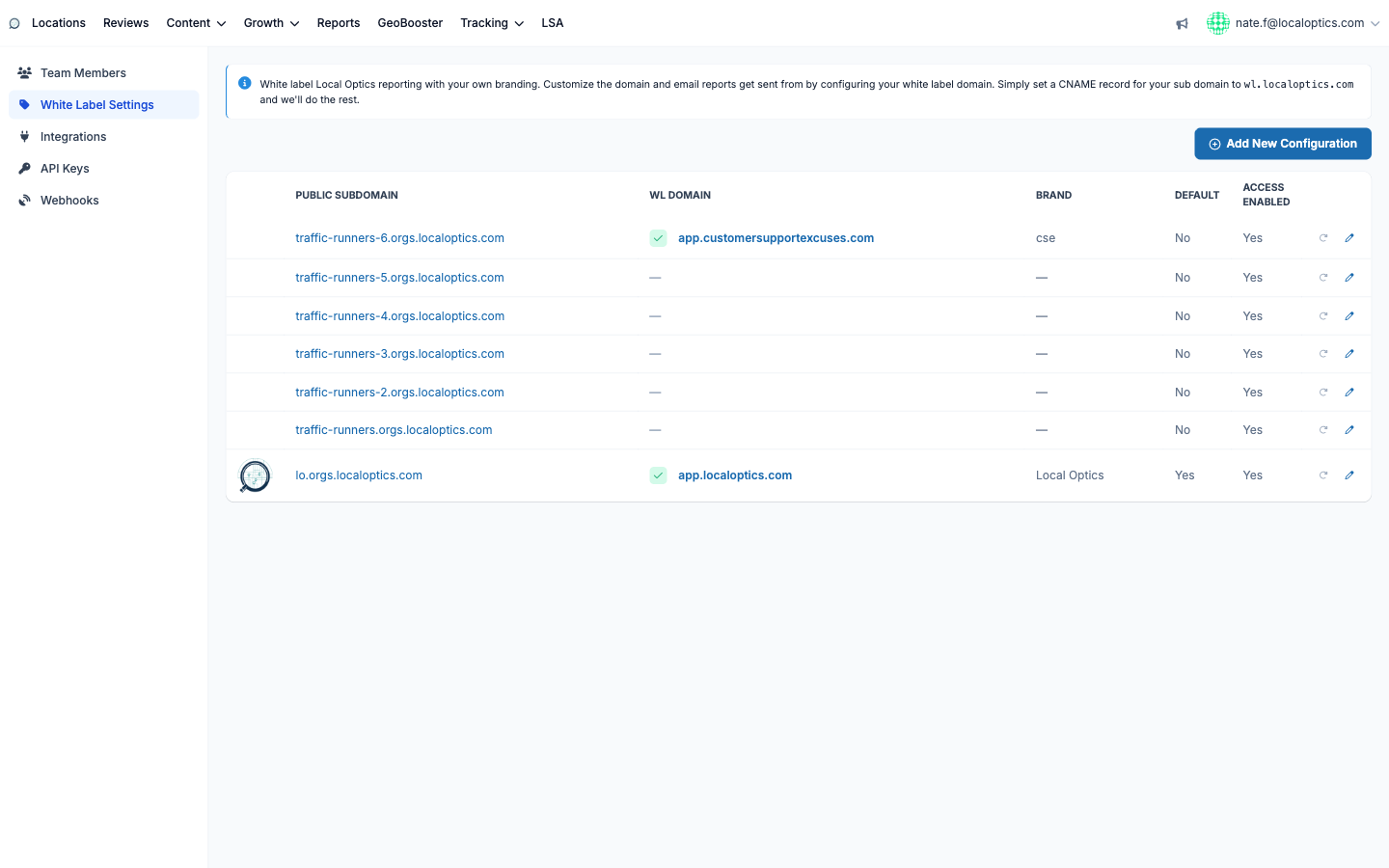
One configuration is the Default WLC - it brands everything unless a specific report configuration, audit configuration or geogrid widget picks a different one. The list view shows each configuration's subdomain, domain status, brand and whether public access is enabled; the refresh icon re-checks a pending domain.
The configurations list:
And the edit form - public access, domain and branding sections: