Report Configurations (Reports > Report Configurations) are the templates behind every report: what to measure, for which locations, compared to what, how often, and who receives it. Configure once - the reports generate themselves.
Building a configuration
Name it (optional - a name is generated from your period and comparison choices if you leave it blank).
Choose Locations - pick locations individually, or use location tags so any location added to the tag later is included automatically.
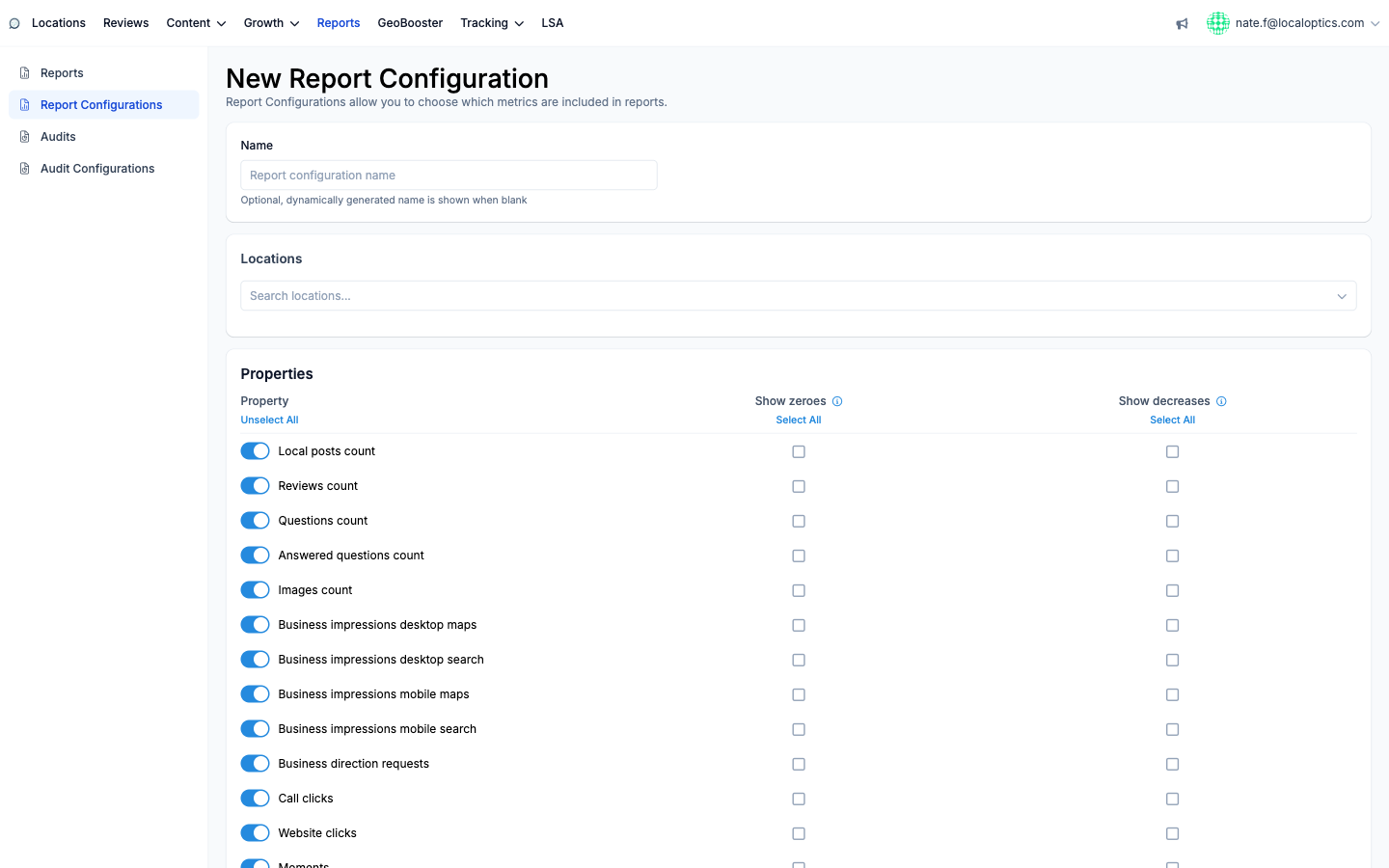
Select Properties - toggle each metric the report should include: local posts, reviews, questions and answered questions, images, the four business-impression types (desktop/mobile x maps/search), direction requests, call clicks, website clicks, and Moments check-ins if you use GeoBooster. Per metric, two refinements: Show zeroes (include metrics even when both periods are zero) and Show decreases (include declining metrics - unchecked, the report only shows positive movement).
Pick the Data period - Week, Month, Three Months, or no comparison period at all.
Choose the Compare mode - Previous period, Same period previous year, Baseline (against the location's first tracked periods - great for proving long-term progress), or No comparison.
Set the Schedule - Weekly (pick the weekday), Monthly, Day of the Month, Quarterly variants, or On Demand Run for manual-only generation.
Delivery and branding
Each configuration can also carry:
Email delivery - customer recipients (To, plus optional Reply-To, CC and BCC), a custom subject, and header/footer messages around the report content.
Team notifications - pick teammates to receive the report internally.
White label - send and share under a white-label brand; leave unset to use your organization default.
Geogrid options - assign search terms per location and optionally Capture nearest geogrids to pull the closest scan when none falls inside the exact period.
Managing configurations
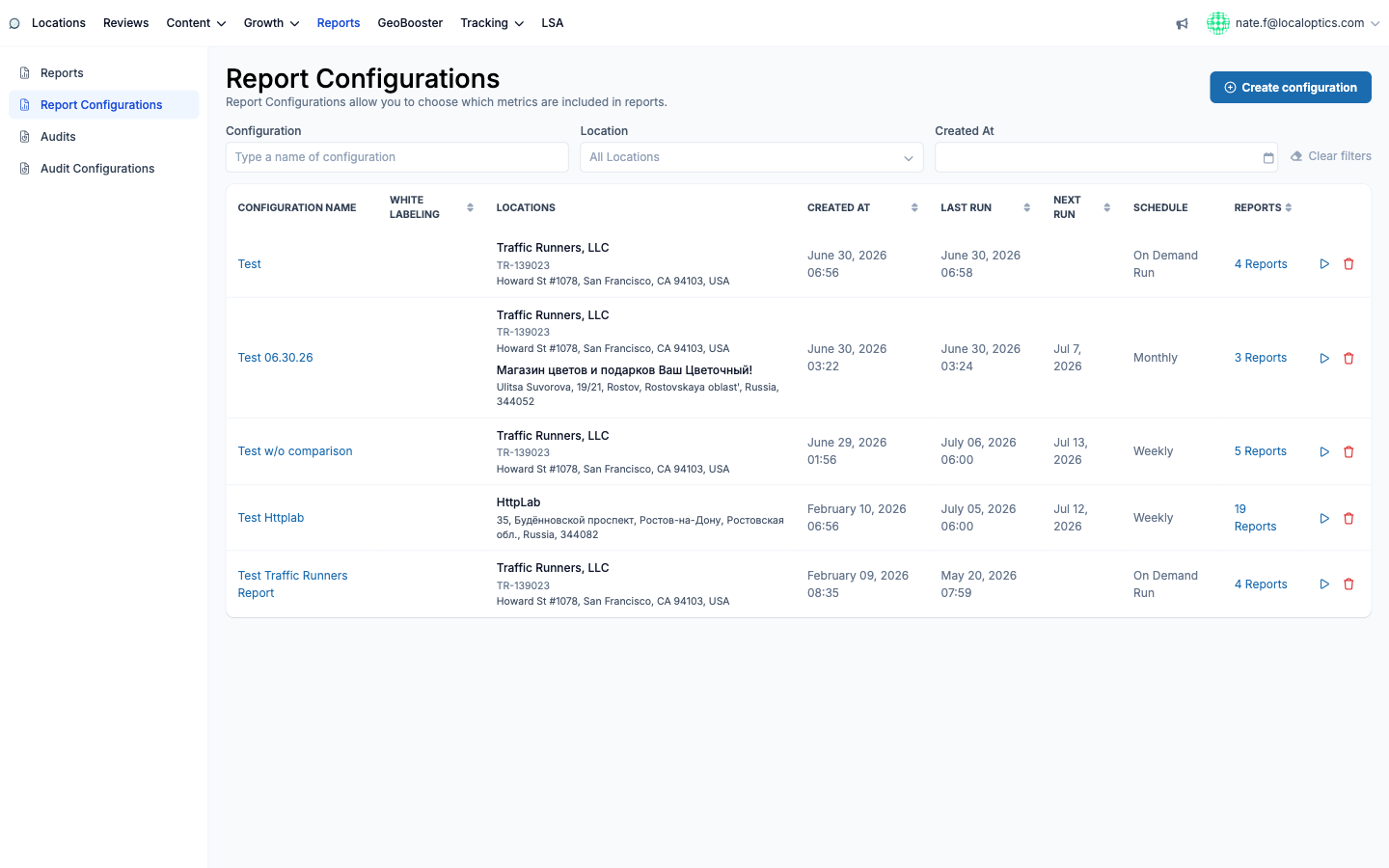
The index shows every configuration with its locations, white-labeling, last and next run, schedule, and a count linking to all reports it has produced. The play button is Generate Report Now - handy before an unscheduled client call - and the trash removes the configuration.
The configuration form with the per-metric toggles:
And the configurations index with schedules, run history and the run-now button: