How to Connect Local Optics MCP to ChatGPT Desktop
Connect Local Optics to ChatGPT to work with your locations, tracked keywords, geogrids, and audit reports directly from a conversation.
This guide covers the desktop setup tested on macOS on October 19, 2026. You will need ChatGPT Desktop with access to local MCP configuration and your Local Optics MCP token. A separate plugin created through Plugin Creator is not required.
1. Prepare your server URL and token
Use this MCP server URL:
https://app.localoptics.com/mcpHave your full Local Optics token ready. It starts with mcp_. You will enter it in the application settings, not in the chat.
2. Ask ChatGPT to prepare the connection
Open a desktop session with access to local files and paste this prompt:
Configure a manual Local Optics MCP connection in this
application's local configuration.

Server name: local-optics
URL: https://app.localoptics.com/mcp
Transport: Streamable HTTP

Local Optics requires support for MCP protocol 2026-07-28.
In ~/.codex/config.toml, set mcp_2026_07_28 = true under
the existing or new [features] section.

Inspect the current configuration first. Add or update
mcp_servers.local-optics and keep this manual connection
enabled. Preserve unrelated settings and connections.
Do not create duplicate TOML sections.

If an installed Local Optics plugin separately declares
the same server, reversibly disable that plugin while
keeping the manual connection enabled. Do not edit
plugin cache files.

I will enter my token myself in the application settings
under Headers → Authorization. Do not ask for the token
in chat, display existing secrets, or replace a working
token with a placeholder.

Do not use bearer_token_env_var or env_http_headers
to store a literal token.

When finished, explain what changed and where I should
enter the Authorization header. Do not close the
application automatically. Do not run scans or perform
write operations in Local Optics.

If local configuration access is unavailable or this
client version does not support the required protocol,
report that limitation. Do not claim the connection
works until it has been verified.
Wait for ChatGPT to confirm that the configuration is ready.
3. Enter your token
Open Settings → Plugins → MCPs → Local Optics. The entry may appear as local-optics.
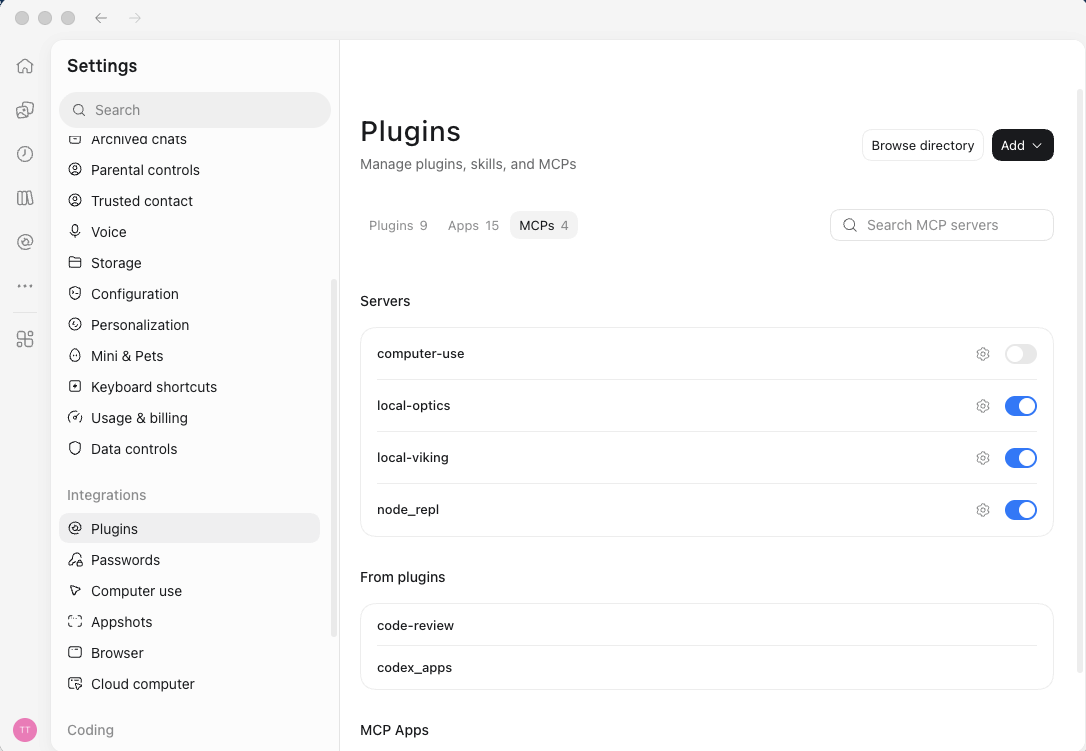
Set the fields as follows:
Field Value
URL https://app.localoptics.com/mcp
Bearer token env var Leave empty
Headers: name Authorization
Headers: value Bearer mcp_YOUR_FULL_TOKEN
Headers from environment variables Leave empty
Replace mcp_YOUR_FULL_TOKEN with your actual token. Include exactly one space between Bearer and the token. Do not add quotation marks in the settings form.
The Bearer token env var field expects an environment variable name, not the token itself. Leave it empty when using the Authorization header.
Click Save.
4. Restart ChatGPT Desktop
On macOS, fully quit the application using ⌘Q, then reopen it. Closing the window alone may not reload the MCP configuration.
5. Verify the connection
Start a new session with access to local MCP tools and send:
Check the local-optics MCP connection. Retrieve the
available tools and list my locations using find_locations.
Do not run scans or perform write operations.
The connection is working when ChatGPT retrieves your account’s location data through MCP.
The server exposed 31 tools during testing on October 19, 2026. The available tools may change over time; the number of locations depends on your account.