Form Tracking (Tracking > Form Tracking) captures the leads your website forms generate - every field of every submission, with the page context that tells you where the lead came from. Together with Call Tracking it completes the lead picture: calls on one side, form fills on the other.
Creating a widget
Click Create new widget and name it after the site or form it will watch (for example "Homepage Contact Form").
Choose the Form tracking method: Native form tracking follows standard HTML form submits and is right for most sites; Asynchronous form tracking intercepts AJAX submissions instead - list the endpoint URLs your forms post to (like /api/leads).
Optionally narrow the capture with a Form selector (a CSS selector such as #contact-form), attach a Location for per-location attribution, and set a Redirect URL to send visitors to a thank-you page after submitting.
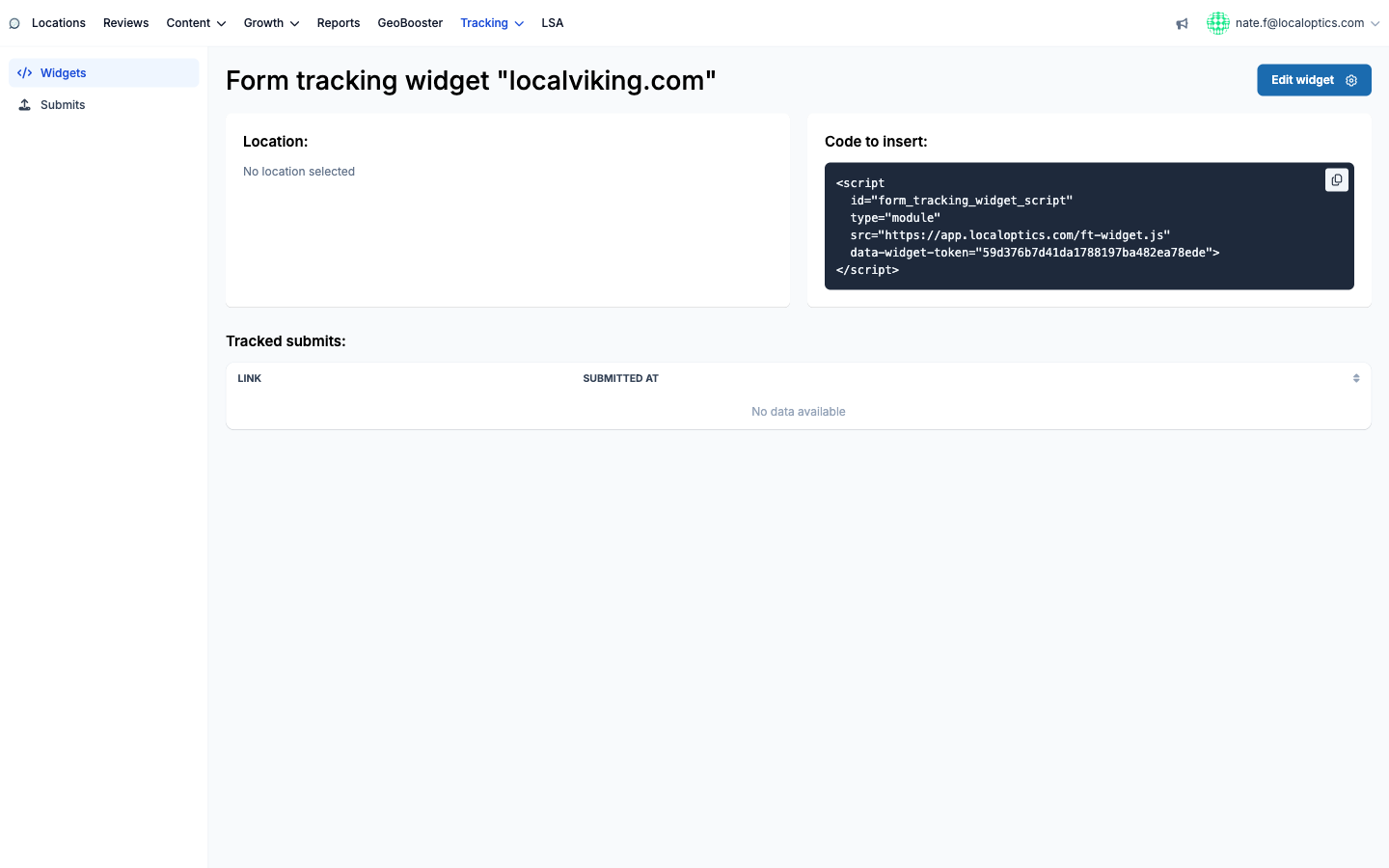
Copy the Code to insert - a single script tag with your widget's unique token - and paste it into the site.
That's the whole install. From then on, every matching form submission lands in LocalOptics.
Reading the submissions
The Submits page collects every captured submission across all widgets, filterable by widget and date range. Each entry shows the page it was submitted from and when; open one for the full picture:
Submit data - every form field exactly as the visitor entered it (name, email, phone and any custom fields).
Context data - the page URL and referrer, the visitor's browser languages, screen size and user agent, so you can tell which page and audience produced the lead.
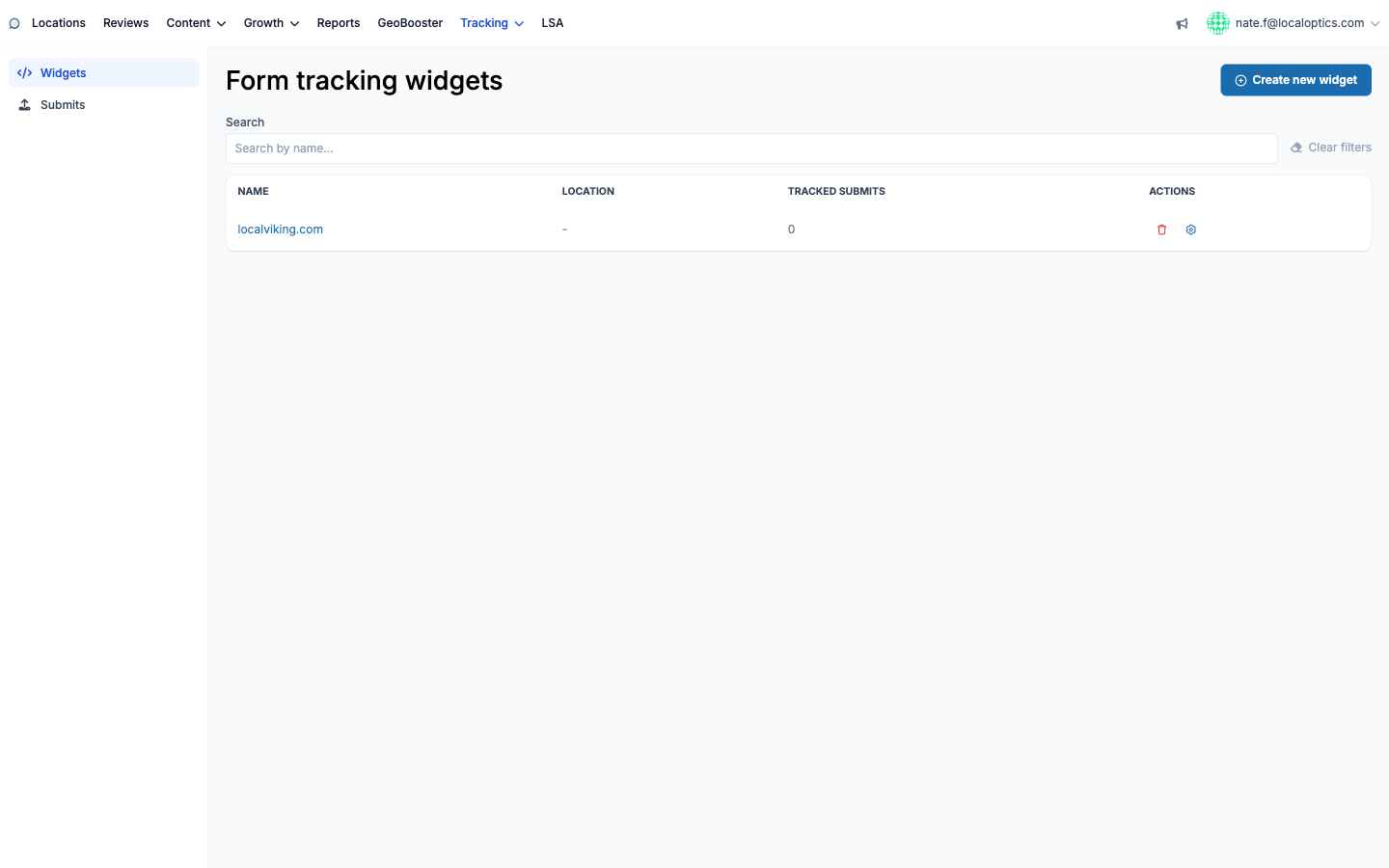
Each widget's own page also lists its tracked submits alongside the embed code, and the widget index shows a running Tracked Submits count per widget - a quick health check that the script is still installed and firing.
The widgets index:
And a widget's page with its embed snippet, location link and tracked submits: